
A few steps to get started
After installing Roblock, enable call blocking and SMS filtering separately. The app will walk you through setup; you can also find the controls below.
- Download and open Roblock.
Download Roblock from the App Store and follow its setup instructions. - Enable call identification and blocking.
On current iOS, open Settings › Apps › Phone › Call Blocking & Identification and enable the available Roblock extension. Older versions may place Phone directly in Settings. - Enable text filtering if you want it.
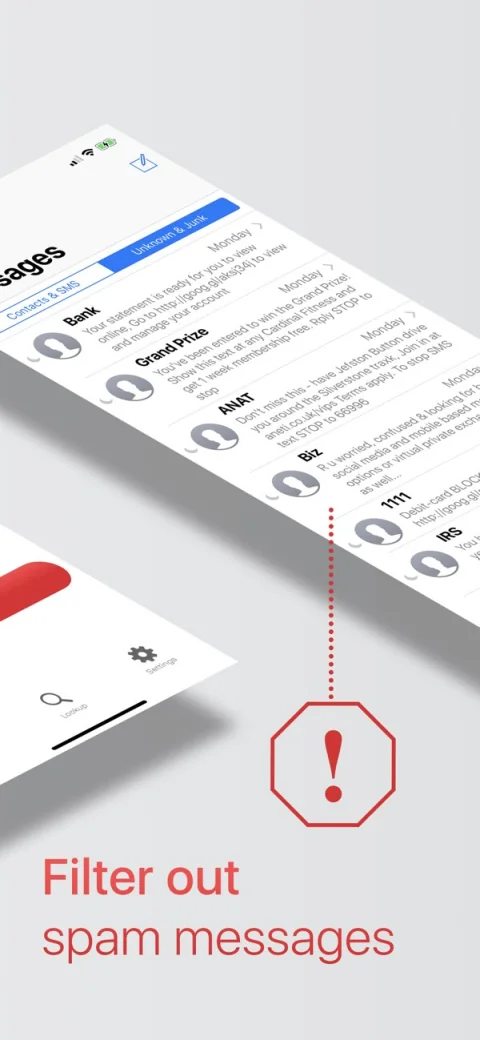
On current iOS, open Messages › Filter › Manage Filtering › Text Message Filter, then select the installed Roblock filter. On iOS 18, start in Settings › Apps › Messages › Message Filtering. - Review your filtered calls and messages.
Check your filtered lists for calls and messages you wanted to receive.
Start with the settings that fit your day.
You may only need Apple’s built-in controls. Our guides explain those options first, then show where an app can help.
Questions about Roblock
Does Roblock block every unknown number?
Unknown and spam are different things. Roblock identifies or blocks reported spam numbers. Apple’s setting for silencing unsaved callers is a separate option.
Is Roblock free?
Roblock is free to download and includes in-app purchases. The App Store and the app show current paid features, subscription terms, and pricing.
Can Roblock filter iMessage?
Roblock filters SMS messages from unknown senders. It does not filter iMessage or messages from your contacts.
Where can I get help or read the privacy policy?
Visit Roblock support and privacy links. Include your iOS version and the feature you need help with when you contact us.